Combine multiple records into a single field

I'm trying to use this feature to make a single shipping label for several items from a spreadsheet that lists all items individually. However, not all the fields that I need to combine are available when I click:
combine multiple records into a single field
Does anyone know why some fields aren't available?
0
-
Hello Teresa,
Welcome to the BarTender Community!
In order to properly troubleshoot this issue, we would appreciate it if you could provide us with the following information:- What BarTender Version, Edition, and Service Release are you currently using? You can find this information by accessing the Help > About menu on BarTender Designer.
- Could you tell us what kind of database are you using? Is it an Excel spreadsheet?
Also, this example illustrates how you can populate multiple records of a single database field on a printed item. Could you review the steps and check if you still experience the issue?- Create a new BarTender document and setup a new database connection.
- Go into the Database Connection Setup→Records Per Item section.
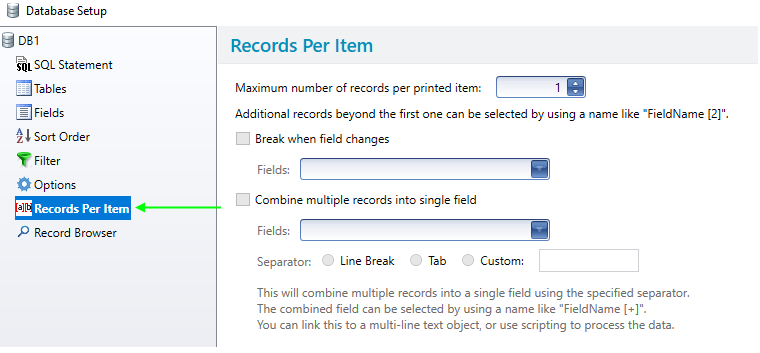
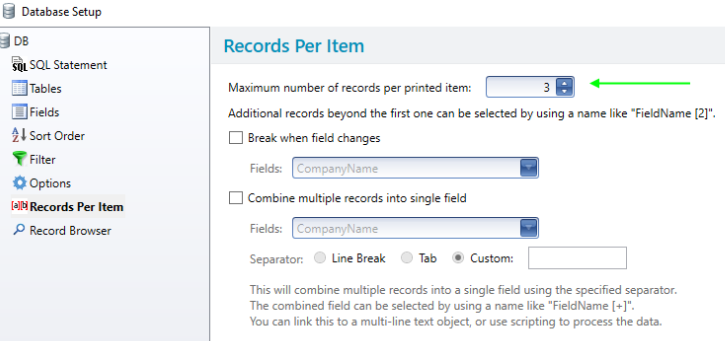
- Set the maximum number of records you want per printed item. For this example, it is set to 3.
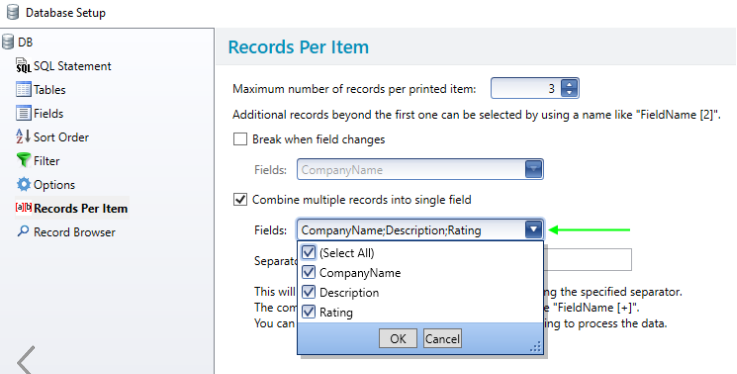
- Enable the checkbox option combine multiple records into a single field. Select the field drop down->enable the checkbox to (Select All)→click ok. Set the separator to Line Break.
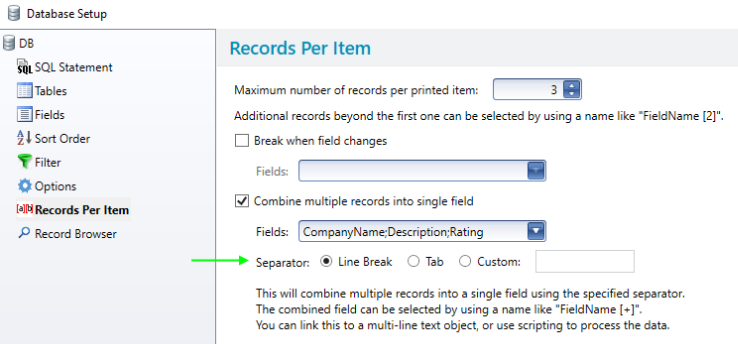
- Click ok to the database connection setup.
- Now on the template design, create a normal wrapped text object and place it on the template→go into the text properties.
- Select the default data source→change the type to a database field using the data source wizard. When prompted for the field to use, noticed the available fields names in the drop down list. Some database field names have a + symbol or number value next to them. The + symbol indicates that it will display all the records for that particular database field. The number value indicates it will display a particular number record.

- For this example choose CompanyName + for the database field to use. Click finish to the data source wizard→close the text properties window.
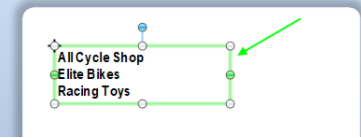
- You can see it displays the 3 records for the CompanyName database field for a single printed item.
Thank you in advance.
0 - What BarTender Version, Edition, and Service Release are you currently using? You can find this information by accessing the Help > About menu on BarTender Designer.

Please sign in to leave a comment.
Comments
1 comment