Radio Buttons to Change Date Format

Hi Bartender Community,
I have a template:
- Part Number
- Batch Number
- Expiry
I have a Form:
- Drop Down menu with embedded Data for the Part Number
- Single text line for the Batch Number
- Date Picker for the Expiry
- Radio Buttons to Change the Expiry Format
All but the radio buttons work. They currently just show as greyed out.
After a date is selected (if it needs to be before that is ok too) I want the user to select the radio button to format the date to either YYYY-MMM-DD format or select the other radio button for DD-MMM-YYYY format. This should change the format of the Expiry date field on the label to print out in either of the two formats.
Any assistance on this would be greatly appreciated.
PS. Is there a “cheat” sheet or detailed help guide on VB for Bartender I could refer to for assistance?
Kind Regards,
James
-
You could do this without resorting to VB:
- Add a text field to the side of the label/printed area (ie so it does not print but can be referenced) and make this a named field. I called mine “DateOrder”
- Add a field onto the label made up of the two different date strings. Set the Transforms>Suppression for each sub-string so that it does not print if the DateOrder begins with either Day or Year as appropriate
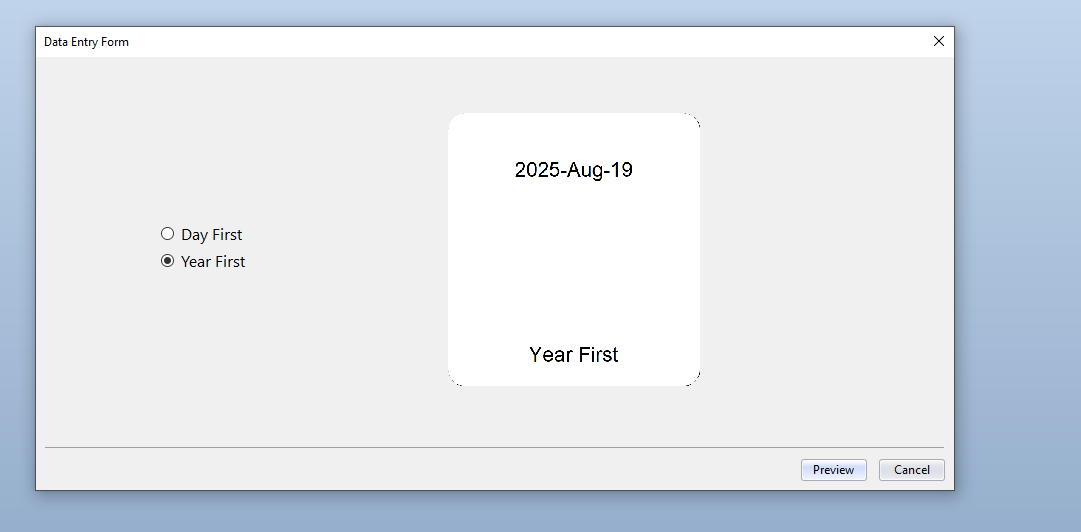
- Create your Radio button, linked to the DateOrder field and give it two values Day First and Year First.
At print time when the user chooses the appropriate value the matching sub-string prints. For the image below I have left the DateOrder field visible on the label:
 0
0

Please sign in to leave a comment.
Comments
1 comment