To use 2 child instances of a data source in BarTender Designer

I want to use 2 child instances of a data source so that I could use it in two different places on a label template. Example- The actual data source is displaying the value in decimal. I want to utilize two instances of the data source without modifying the actual data source.
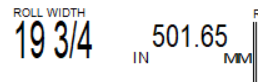
1st instance- Convert the value of data source(19.75) into a mixed fraction.
2nd instance- Multiply the value of the data source(19.75) by 25.4
-
The second one is easier to accomplish than the 1st but in both instances you will need to include some VB programming. The type of VB script to use is dependent on where the original data is coming from and if it from a database or manual entry then you will need to add Event Controlled Script routines and process the data at the appropriate time (ie OnNewRecord for database source or OnPostPrompt for manual entry data)
- If the original source does not need to be printed then add a field that will contain this off to the side of the label and use the Change Data Source Name button to make this a Named Data Source (i called mine TheNumber)
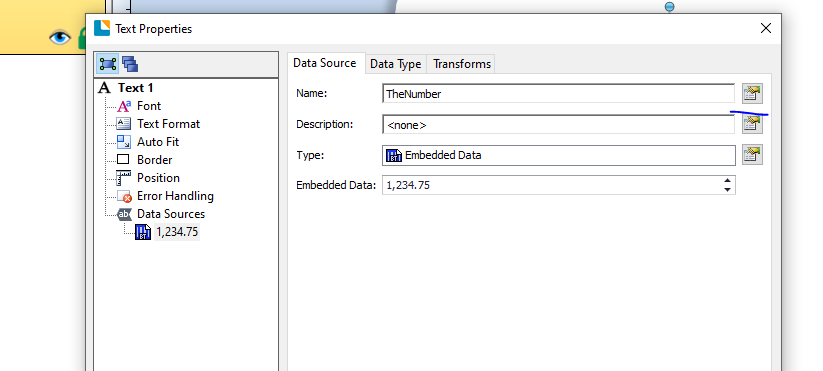
- Add/amend the field that will contain the mixed fraction and set this field to a Visual Basic Field either a Multi-Line script or else an Event Controlled Script routine and press then Edit button.
- Type/copy in the VB as shown below but for the first line type in Value = and then double click on the Named Data Source name you set above
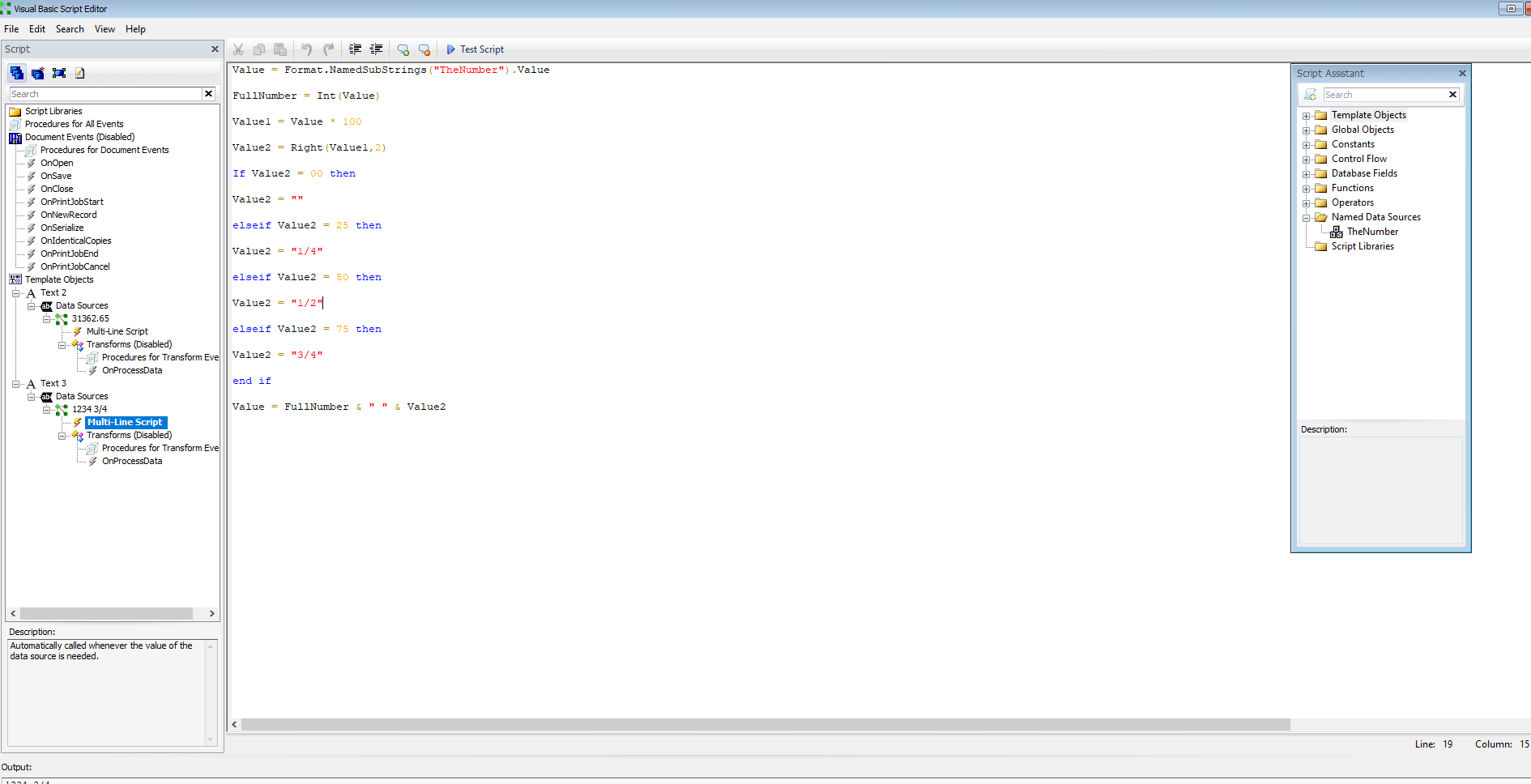
Value = Format.NamedSubStrings("TheNumber").Value
FullNumber = Int(Value)
Value1 = Value * 100
Value2 = Right(Value1,2)
If Value2 = 00 then
Value2 = ""
elseif Value2 = 25 then
Value2 = "1/4"
elseif Value2 = 50 then
Value2 = "1/2"
elseif Value2 = 75 then
Value2 = "3/4"
end if
Value = FullNumber & " " & Value2
- Click Close and Close to come out of that field and then add another VB script field for the multiplication.
- Configure similar to the above but add the following commands instead
Value = Format.NamedSubStrings("TheNumber").Value
Value = Value * 25.4
- again click close and close.
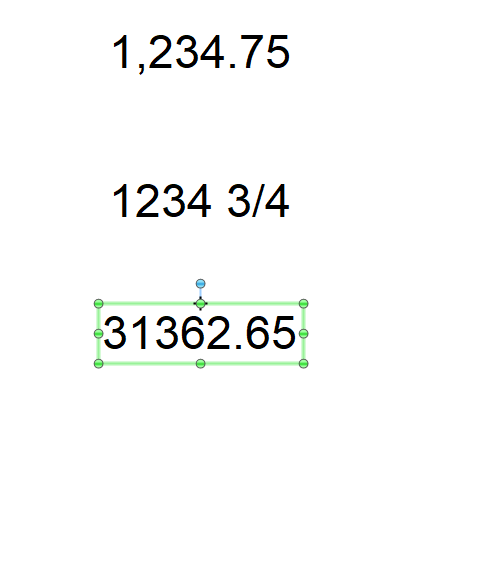
Below is a sample of what I get using this
0

Please sign in to leave a comment.
Comments
1 comment