Print Database-Driven Labels to JPG

I need to be able to print a series of labels that get populated with data from a CSV file, but simultaneously save a copy of each label is a separate JPG file for record-keeping purposes. I have everything set up and working to print the labels using the data in the CSV file, but I cannot figure out how to automatically generate all the JPG files and save them with specific file names so I can import them later and know what label is associated with each unit. Is there a way to do this?
-
I am not sure if that is possible.
There is a an Export Image option in the File menu but I am not sure how you could call that automatically and I believe it only creates an image of what is shown on the design screen/template anyway and so would not show the dynamic data.
You could create an Action that it when it prints the label it then also prints it to a PDF driver to create a graphical type image, but every 2000 PDF labels would class as a printer for licencing purposes.
0 -
Hi Peter,
Thanks for getting back to me. I'm trying to automate our production line process which is currently very manual and paper-oriented. The production tech has to print 2 copies of every label - 1 for the product and 1 to be applied to a paper work order log (an Excel printout), which then has to be filed. One of my goals is to get rid of the paper so the work order log is entirely digital. For that, I need to be able to paste JPG images into the Excel spreadsheet. I've already written a macro to automatically import the JPG images, place them in the appropriate cells, size them to fit, and center them. Now I just need the JPG images.
Is there no way to do this via a script of some sort? I've seen references to VB being used with BT, but I cannot figure out how or where that can be done.
Also, I don't understand your comment, "every 2000 PDF labels would class as a printer for licencing purposes." What does that mean?
0 -
As mentioned above there is an option on the File menu to Export and image (to JPG and others) from BarTender but I do not think you can call that automatically and I believe it will only export the onscreen data and not the live data at print time.
Although not exactly what you want, but if you have the Automation edition or higher you could enable logging and save details of the print job information including images of the label to the System Database and use the History Explorer app for traceability and so you would see something like this for a particular print job:
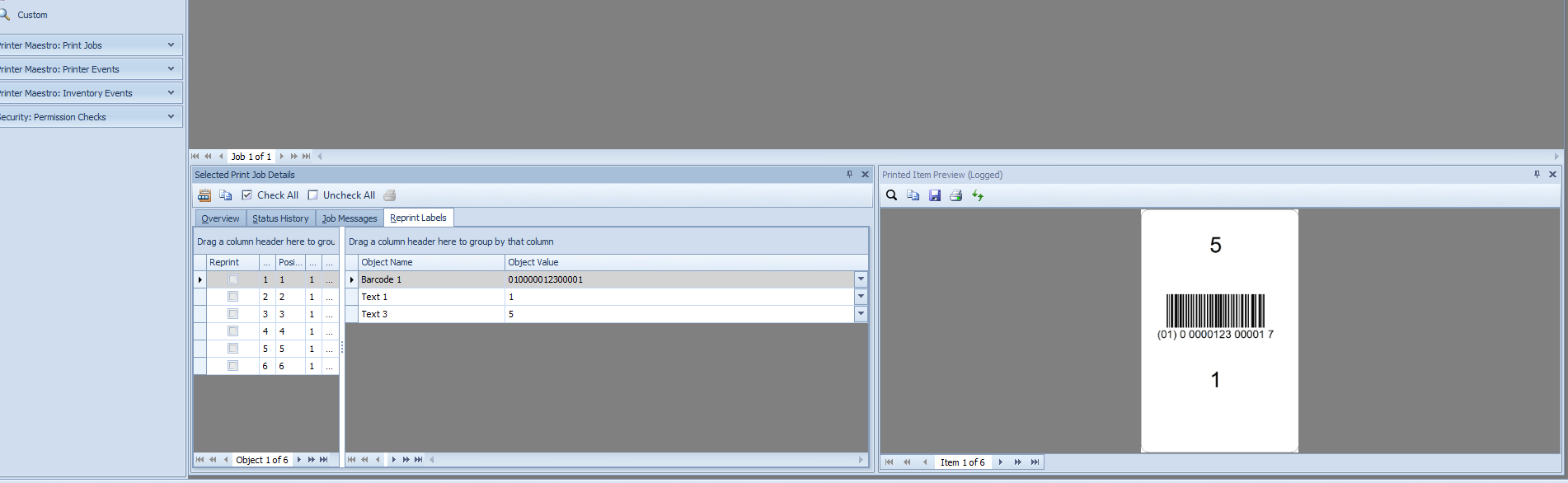
You can however create a PDF file at print by printing to a PDF printer including the inbuilt driver that comes with later versions of BarTender. Although again Automation or above would be required for this.
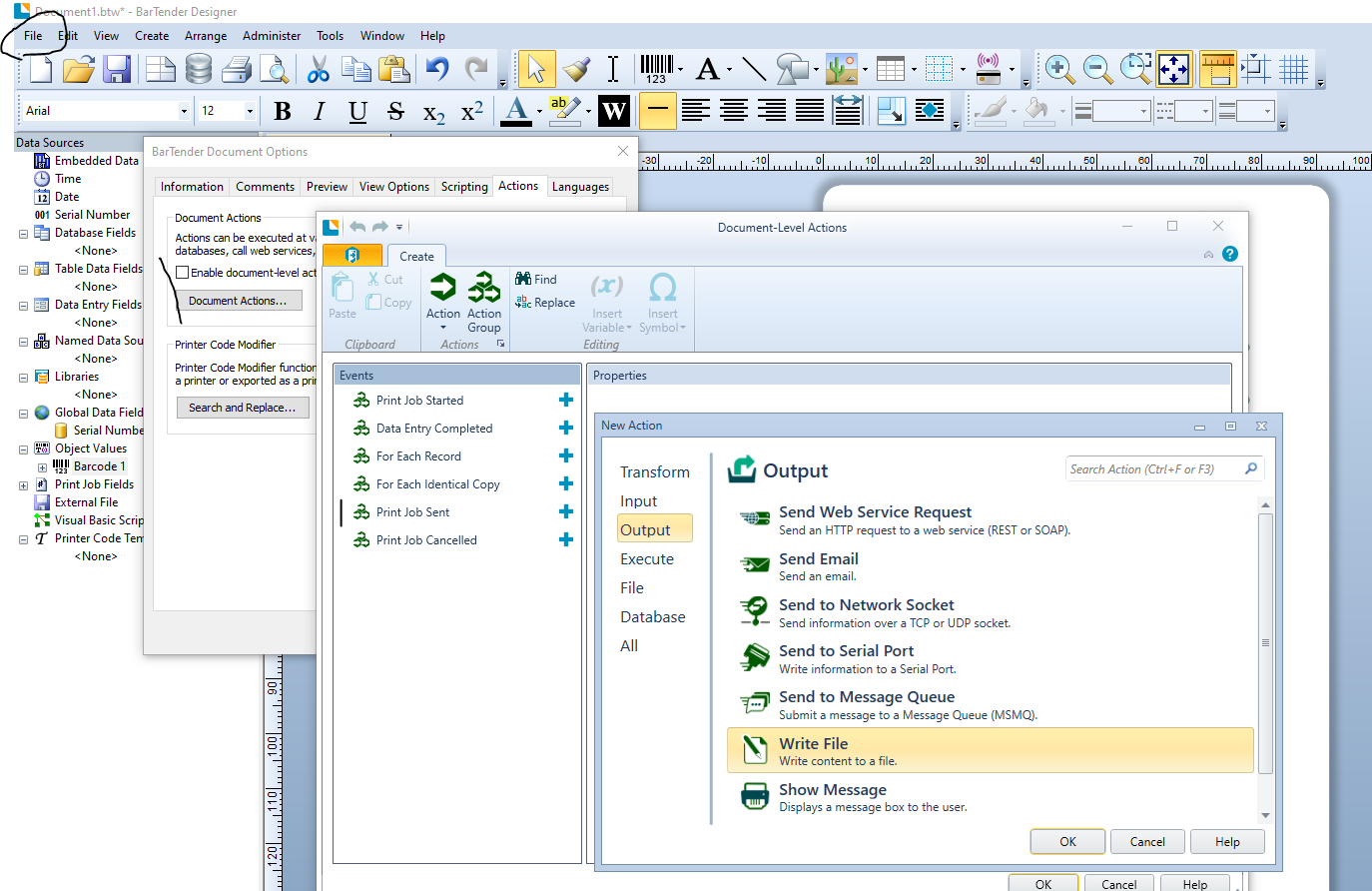
From the File menu > BarTender Document Options > Actions, you could configure a process runs at specific times during a print job, such for Print Job Sent you could write the printed data to a file and use that file to automatically "print" a label to a PDF print (via the use of an Integration) or else, use the Execute > Print Document option and print to a PDF label this way and this probably is the better option.
When printing to a physical printer, that printer takes up one of the printer licence slots in Administration Console, no matter how many labels are printer to it. However for a PDF device there is a limitation that every 2000 PDF labels count as one printer on the licence. So for example, if you print 2500 labels to a Zebra printer for example, that would take one slot on the licence, but if you printed the 2500 labels via a PDF driver that would take 2 slots on the licence #, with, as usual, unused printers being automatically removed from the printer list after 7 days.
# You could print another 1500 PDFs via the same PDF driver before a 3rd slot is used, as this is a cumulative setting.
0 -
I think what we're going to do instead is to create a new label template that uses standard letter size paper define the rows and columns to maximize the number of labels per page, then just print the entire document to a single PDF file and embed that in the spreadsheet we use for a historical log. I ran some tests and was able to create an Excel macro that embeds those PDF files into the appropriate cells in the Excel file.
But you never answered my question above regarding your comment, "every 2000 PDF labels would class as a printer for licencing purposes." Does that mean if I print the labels on a Zebra printer and then print them to a PDF file that after 2000 labels my license will be impacted in some manner? If so, that's a horrible policy.
0 -
I explained it in more detail at the bottom of my last post above, but basically
For a physical printer you can print any number of labels to that printer and that is just one printer on the licence.
For PDF printing, each 2000 pdf labels you "print"/create class as one printer on the licence
0 -
I read through the EULA and it appears that the limit of 2000 is per week:
"2.6.5 Printed Item-Based License. When BarTender Software is used to generate electronic documents such as PDF files, licensing is based on the number of items printed per week, with each printer license granting the right to generate up to 2,000 Printed Items per week. While the BarTender Licensing Service attempts to monitor the number of items printed per week and license compliance, it is your responsibility to ensure that you print no more than 2,000 items per week per printer license. The total number of Printed Items printed in a week must not, in a 7-Day Period, exceed 2,000 per printer license, including to the extent applicable, across all production and non-production environments."
So if we do not exceed 2000 PDF labels per week, will that prevent BarTender from classing the PDF driver as a 2nd printer?
0 -
Between 1 and 2000 labels printed to PDF would class as a printer on the licence, 2001 - 4000 as 2 etc.
0 -
But the EULA says "per week". If we never print 2000 labels in any given 7 day period, that counter gets reset, right?
0 -
Yes the PDF count would reset after 7 days of not being used. This would mean
- Any number of labels to your physical printer plus none to the PDF = 1 licence
- Any number of labels to your physical printer plus 1-2000 to the PDF = 2 licences
- Any number of labels to your physical printer plus 2001-4000 to the PDF = 3 licences
- No labels to your physical printer plus 1-2000 to the PDF = 1 licence
etc
With the labels dropping off the count after 7 days
0 -
When I installed BarTender 2021, it displayed a message stating something to the effect that since it was replacing a BarTender 2016 license with unlimited printers, and that unlimited printers are no longer supported, the new license was upgraded to support 2 printers (I don't remember the exact working). Given that, will we be OK printing to our Zebra printer and PDF files?
0 -
Professional prior to 2019 was single PC any number of printers but since version 2019 it is now any number of computers all of which can print to the same licenced printers which is automatically 2 if you are upgrading from 2016.
Hopefully that will mean the 2K limit PDF printing will not be an issue for you after all, as long as the PDF printing is all to the same "printer" (ie on the same PC)
0 -
Peter,
Thanks for confirming. On a separate issue, there appears to be a syntax error in the way BarTender is generating PDF files. The PDF files open fine in Acrobat if they are opened from Windows File Explorer. But if the exact same file is embedded into an Excel spreadsheet, Adobe Acrobat cannot open them. I've been having a discussion with Adobe about this issue and they claim there is a syntax error causing the problem. I've asked for details and will pass them along as soon as I have them.
If you want to try this yourself, use BarTender 2021 to print some labels to a PDF file using either the "PDF" print option or the "Microsoft Print to PDF" option. If you embed the PDF file into an Excel spreadsheet as a file (NOT a link) and try to open it from within Excel, you'll see the problem.
Bill
0 -
You probably need to raise the PDF issue with the guys at Seagull, I am just a BarTender user and dont work for the company
0 -
Peter,
Wow - you could have fooled me. With all your expertise, I assumed you were a company guru!
Thanks for all your advice.
0

Bitte melden Sie sich an, um einen Kommentar zu hinterlassen.
Kommentare
14 Kommentare