RFID EPC code

Dear all,
I have a Zebra ZD500R printer for printing the RFID code to our labels.
To do so I made a simple program that generates a zpl code and writes this to the printer.
For our new workflow we want to use Bartender to do this.
Our EPC code is divided in several parts (version 8 bit, Vendor 28 bit, Product 24 bit, SerialNr 36 bit)
The version,vendor and product code are fixed but the serialnumber comes from a data field.
How do I setup my RFID object in bartender
Thanks in advance
-
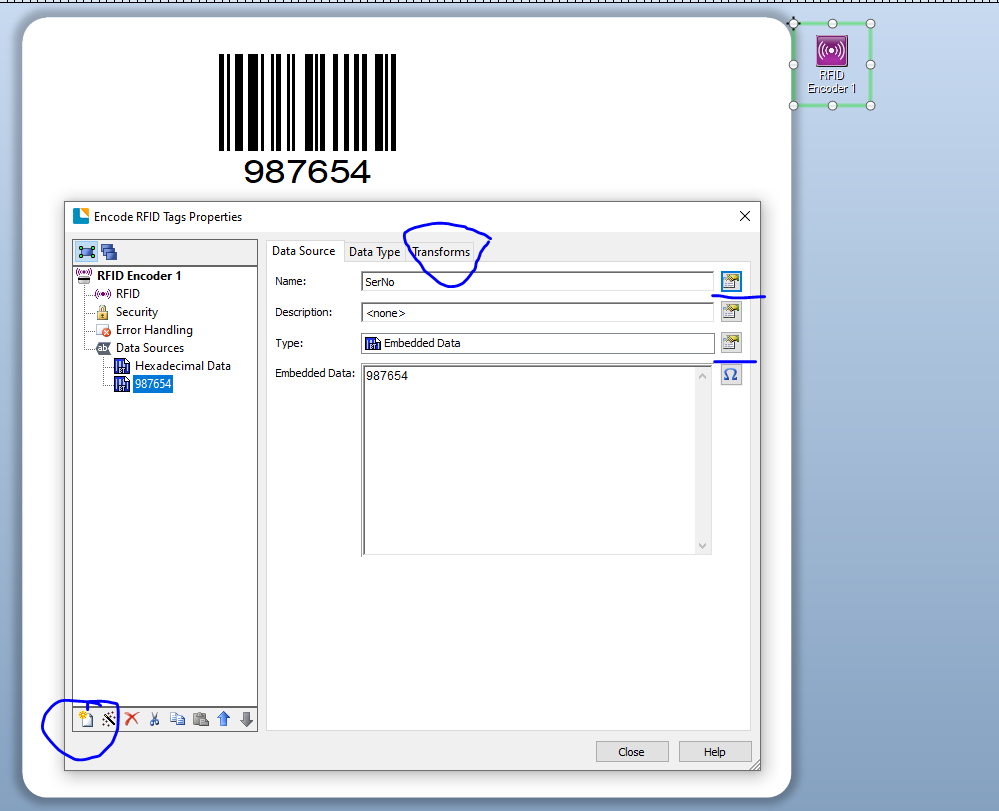
Once you have added your RFID object you can then go into the Properties of it and with Data Sources selected can add additional Data Sources to the object via the button ringed on the bottom left of the image below.
You can then use the Type button to specify where the data for just that element of the string is coming from such as a database object etc. You can also use the Transforms button to adjust, again, just this part of the string to say make it a sequential/serial number.
If the data is coming from a different field on the label or visa versa then the simplest way to achieve this is give the source field a Name via the highlighted button to the right of the Name input box, and then configure that as required. For the linked field you just need to click on the Name button and then on the new screen select the name field you want to link to.
In the image below I have called the second data string in the RFID object SerNo and have then linked the barcode object to this and so they will both have the same values all the time.
I hope this helps.
 0
0

Bitte melden Sie sich an, um einen Kommentar zu hinterlassen.
Kommentare
1 Kommentar