How to properly fit a Code 128 barcode to a small label when printing on a 304 DPI printer (Zebra ZT230)

**Environment:**
- Software: BarTender (version: 12.0.1)
- Printer: Zebra ZT230, 304 dpi
- Label: Dumbbell die-cut label, ~3.543 in (90mm) wide template, barcode placed on the wide section
- Symbology: Code 128, 21-digit numeric barcode value (tested both Code Set Auto and Code Set C)
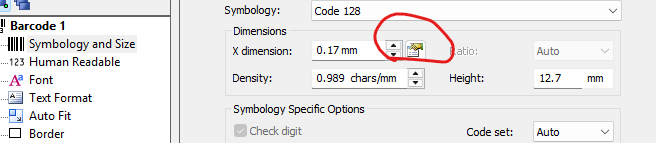
- Current barcode settings: Auto Fit enabled, Barcode width 10.0mm, Minimum X dimension 0.15mm, Maximum X dimension 0.25mm
**What we're trying to do:**
We need our 21-digit numeric barcode to print cleanly and fit within the actual physical label space on our Zebra ZT230 (304 dpi) printer, while still being reliably scannable.
**What we've observed so far:**
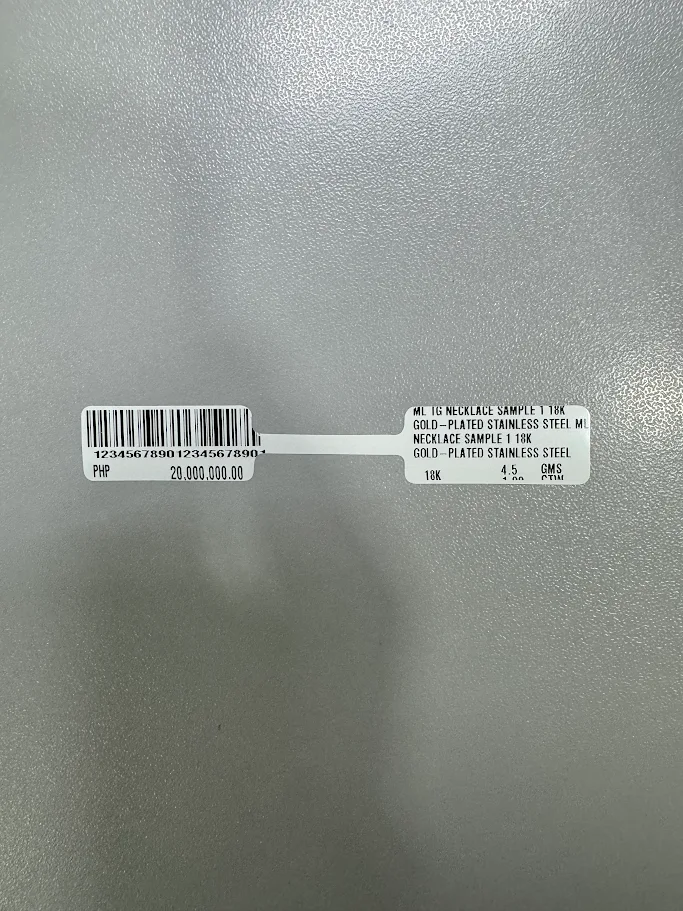
Using **Code Set C**, the barcode fits more compactly within the label width, but the printed bars come out distorted/compressed and **fail to scan**. Using **Code Set Auto**, the bars print more cleanly, but the resulting barcode is wider and does not fit properly within the actual label space (see attached photo).
**Our question:**
What is the correct way to configure the barcode (X dimension, density, or Auto Fit settings) so that it both fits within the actual label width AND remains reliably scannable on the ZT230 at 304 dpi?
Specifically:
1. Should we use Auto Fit, or manually set a fixed X dimension? If manual, what value would you recommend for a 21-digit Code 128 barcode that needs to fit within roughly 10mm of width at 304 dpi?
2. Why would Code Set C produce a barcode that fits the space but doesn't scan, while Code Set Auto scans fine but doesn't fit? Is there a setting that achieves both?
3. Is there a recommended X dimension or density baseline for the ZT230 specifically, to avoid distortion on fine/compact barcodes?
4. Are there darkness or print speed settings on the ZT230 that affect how cleanly fine/compact barcodes print at this resolution?
-
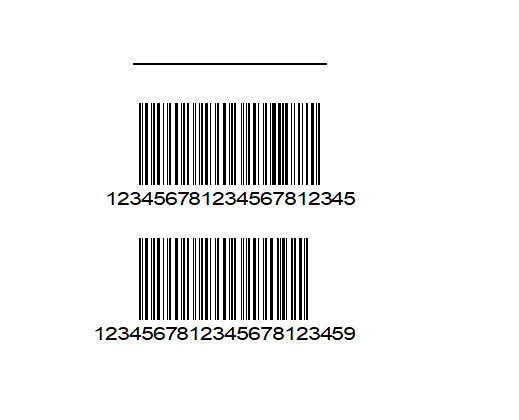
Code set C requires an even number of numeric characters as each pair and converted into a set pattern of bars and spaces.
I would suggest leaving it as Auto as BarTender will then be able to choose the Code set to use and flip between then as required (presumably either starting or ending in A or B with the remainder of the characters in C).
The problem is, unless you override the driver defaults (not recommended) you can only print the barcode at a set X dimension and so the size of the barcode may well be too big
Obviously not a lot of help here but as you can see from the image below a 22 character long barcode symbol is actaully smaller than a 21 character but to the way Subset C works
 0
0

Bitte melden Sie sich an, um einen Kommentar zu hinterlassen.
Kommentare
1 Kommentar