Change Date format for GS1 barcode

First of all im sorry if this has already been posted but i have searched everywhere and cannot seem to find the right solution. I have tried many times and failed so here we go...
I am using Bartender 2016 and have a label where the user is prompted to enter a "PackDate" for a product. This date is displayed on the label in format DD/MM/YYYY without problem and I then have another date diplayed below that for expiry date (EXPDate). This is auto calculated using vbscript from PackDate as value = DateAdd("d",16,PackDate) as its always +16 days from the packing date. (There is possibly a better/easier way to do this and if so im all ears). Both dates are in "clock" DD/MM/YYYY format.
My problem is that i need to display "EXPDate" in TXT format for the GS1 barcode and the date needs to be yymmdd
Everytime I try and convert the date i fail so i am forced to get the user to enter another field in the form which asks them to type the date in the correct format i.e. yymmdd. This does work but sometimes can produce errors if the user is in a rush and enters the date incorrectly. If they could just select one date i.e. PackDate then the rest is done autmatically would save a lot of dramas.
Thanks in advance
-
I no longer have access to 2016 and cant remember if this option was included in there (see below) although you would still need to link the PackDate to this via VB to then apply the offset I think.
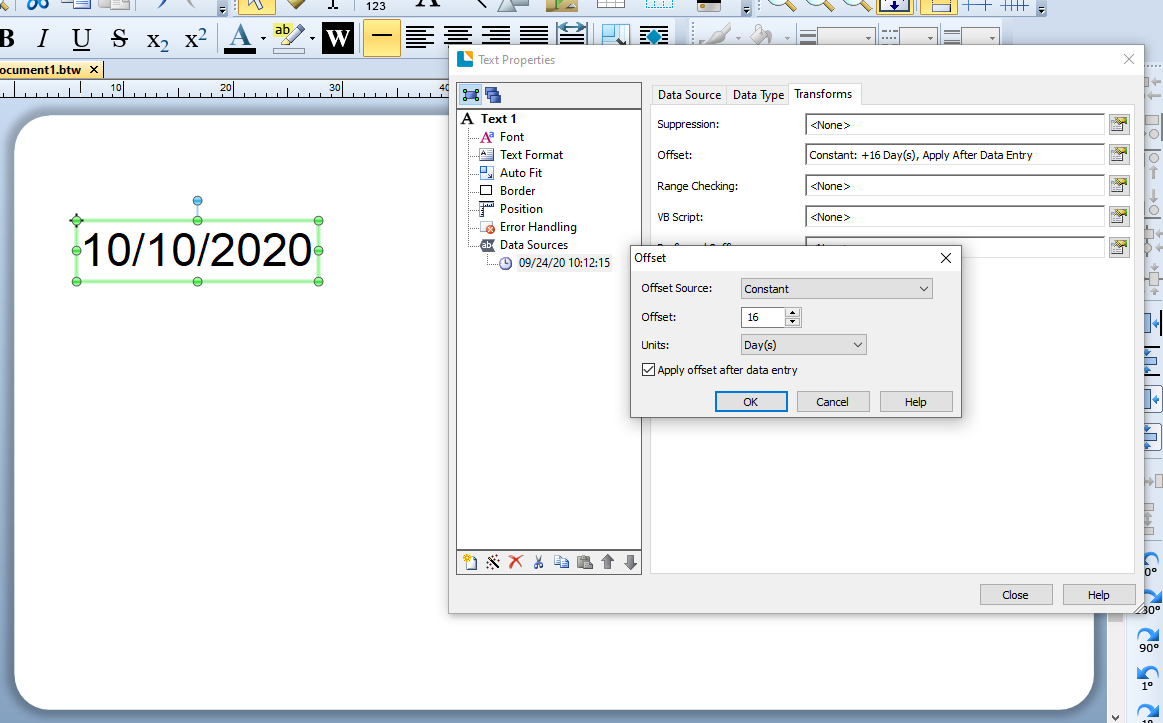
As you have already named PackDate then for the text field leave the VB as is it but then for the barcode element make this a VB script string too and add in the same code as the text field.
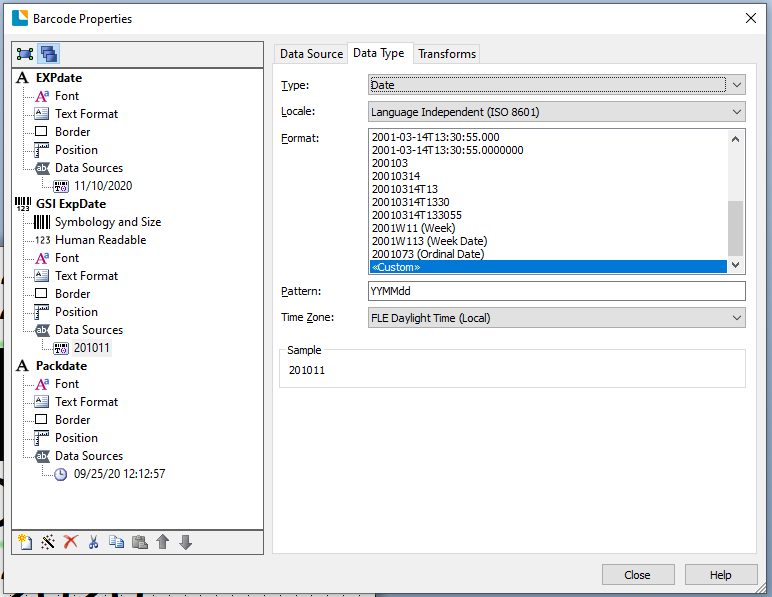
After you have come out of the VB screen then click on the Data Type and adjust the type to Date. I cannot recall if the Locale: Use GS1 formats options was present in 2016, but if not scroll down the various date display options until you get to Custom and then in the Pattern box amend the entry to yyMMdd and then you should get something like the image below.
I hope this helps.
 0
0 -
So you are looking for something like this then?

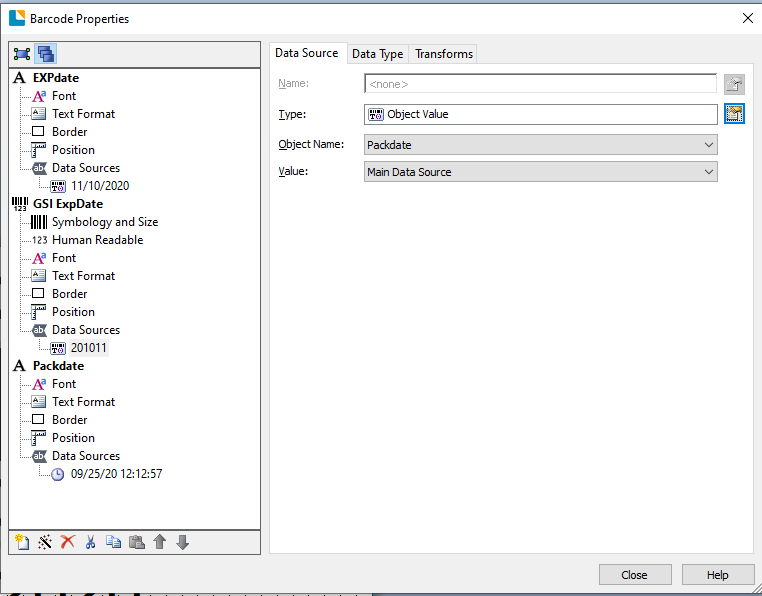
This has been done by using a clock object and two object values. Upper date is a clock that uses date as data type and 2 other are object values with dates as their data type.
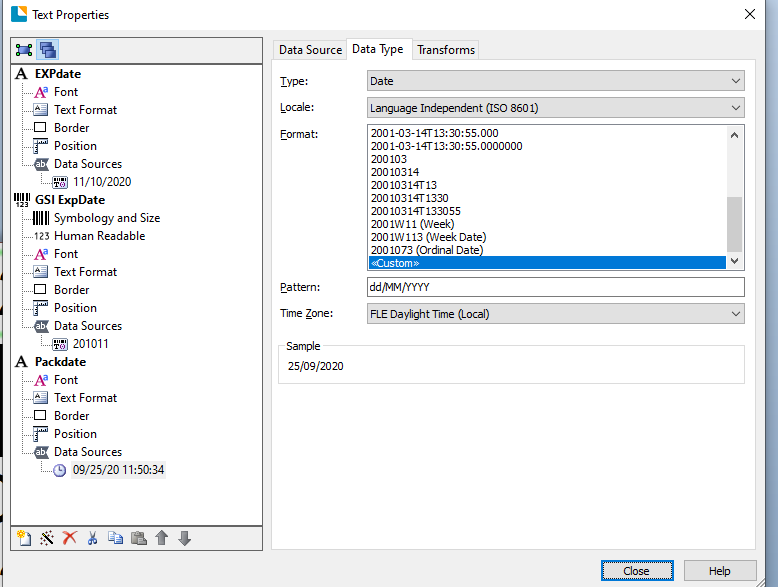
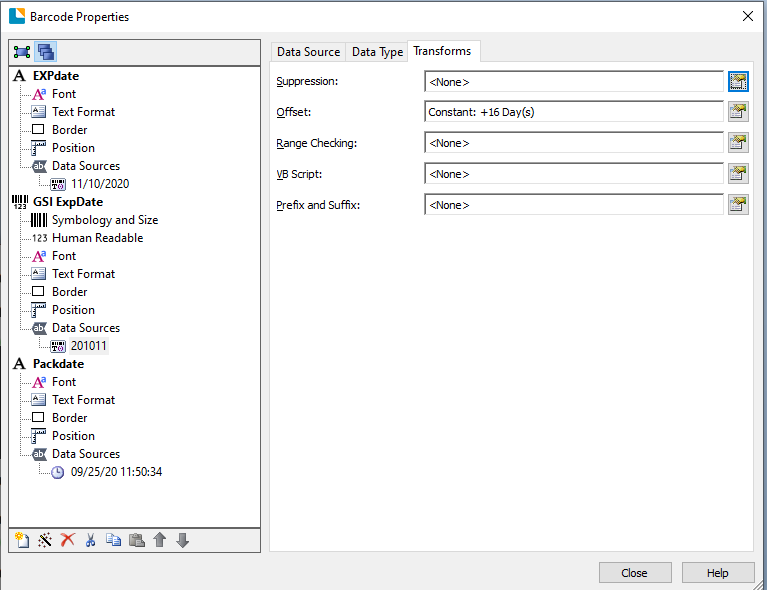
object Expdate has been offset by 16 days
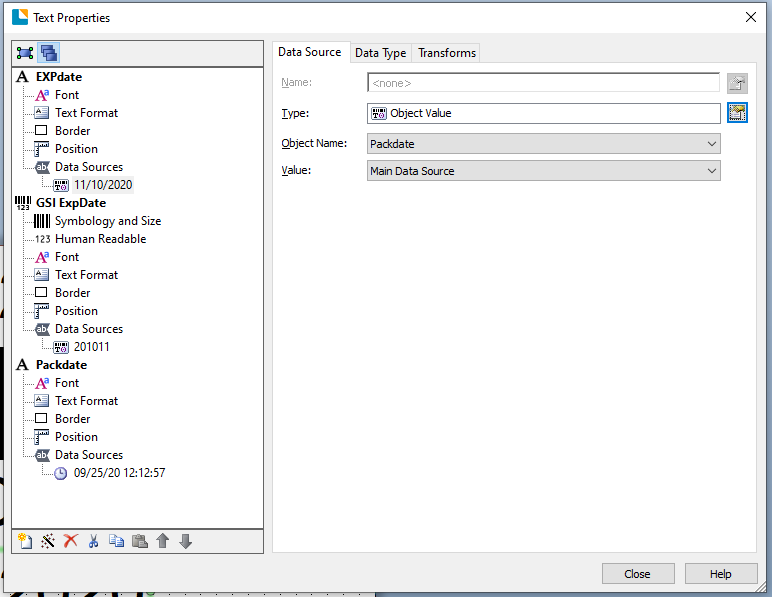
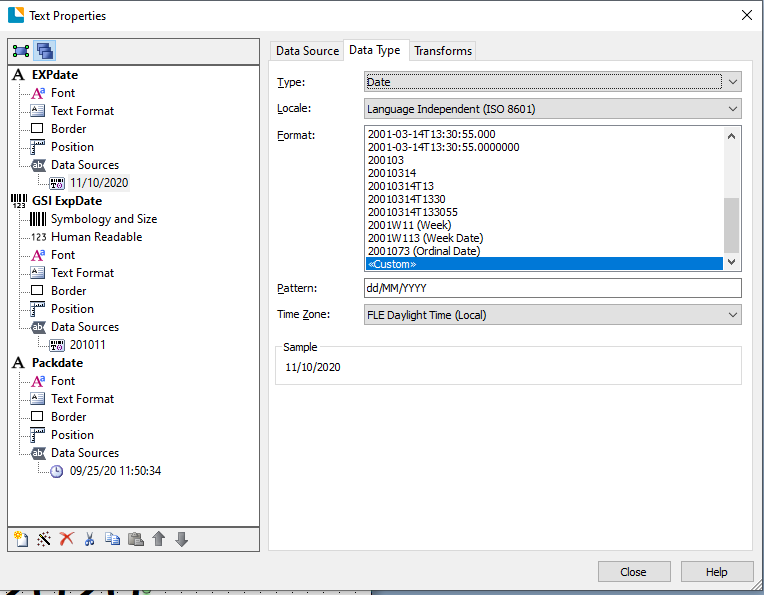
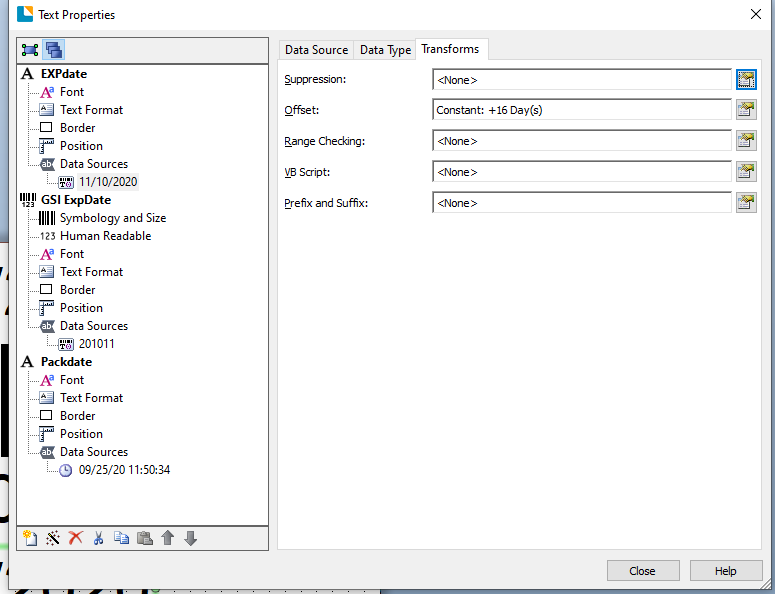
and the barcode has also a object value that looks at packdate and has been offset by 16 days also.
 0
0 -
Yep, that would work too as long as you can apply the offset after the Data Entry value for the PackDate has been chosen. As I said above I cant remember when this option was added as older versions of BarTender to did not have this.
0


Bitte melden Sie sich an, um einen Kommentar zu hinterlassen.
Kommentare
3 Kommentare