Exporting large numbers of labels in separate PDF files (Split PDF files)

Dear Support,
We have a question about exporting large numbers of labels in separate PDF files.

The software below is what we currently use to design and print labels:
BarTender Designer R8
License: Automation edition
Version: 11.3/216048 (64-bit)

We also use databases in Excel that we link to the BarTender files,
When we export the designs in BarTender, a series of article labels is created in 1 PDF.
We want to split the series into 1 label per PDF. We are able to set up in BarTender that 1 label is saved per page, but 1 article-label per PDF is a bit more difficult.
Then you would have to click separately per label each time to select the label you want (Select Records) and then save it in PDF.
Recently we had a series of 147 labels that all had to be in a separate PDF (147 PDF files).

Our question is actually, is there an easy and fast way to save a large number of labels all separately in PDF?
Using the Bartender Software instead of a third party app.
-
I believe you would have to make reach record a separate print request to be able to achieve this.
As you have Automation, if you could create a macro or similar in your spreadsheet that outputs the data for each record to a TX T file, for example, you could then create an Integration that "triggers" every time a file is produced and that then "prints" the label/create the PDF
0 -
Peter Thane Having a similar issue. Native PDF export does only support naming the after the first record and does not save records individually. Page break activated in label file but does only work after overwriting with integration setting. Read through your other comments on here in regard to this topic but it does not work.
Goal: Have a .xlsx dropped in the trigger folder and output of n x PDF (1 per record) + the pdf's need to be named after database record linked in label
Label file includes 4 database records. Thanks for your help0 -
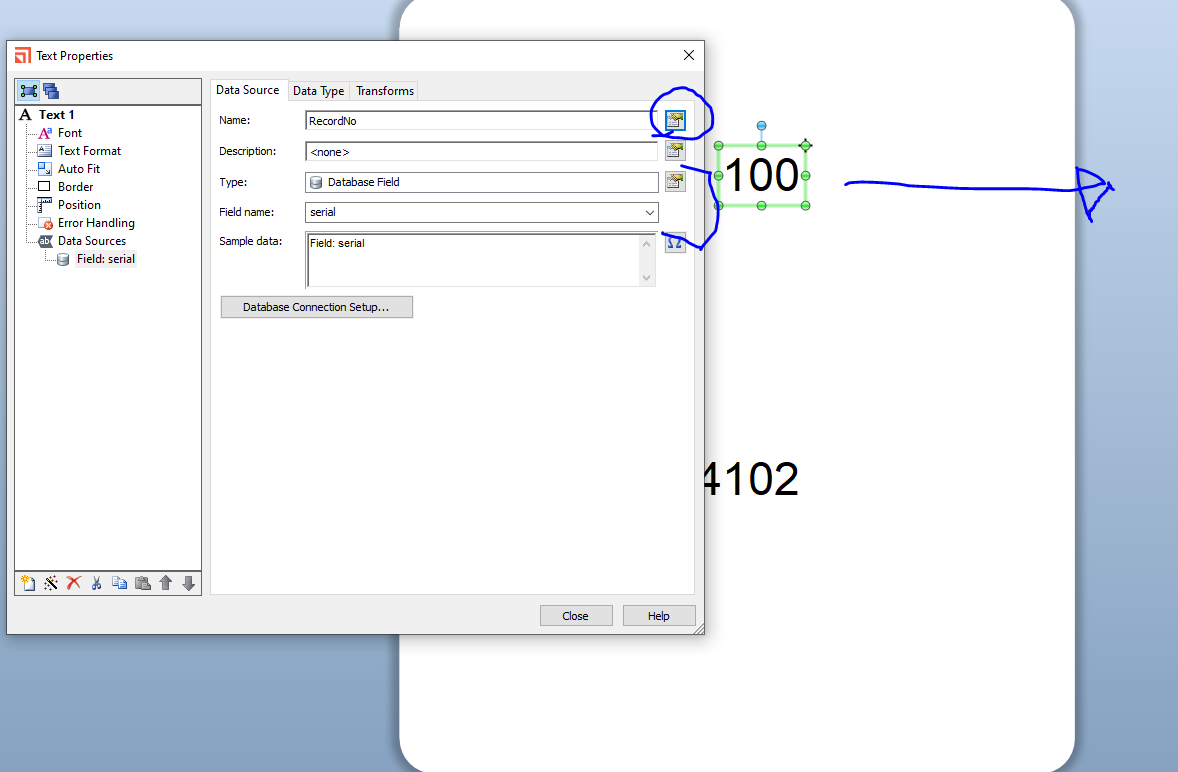
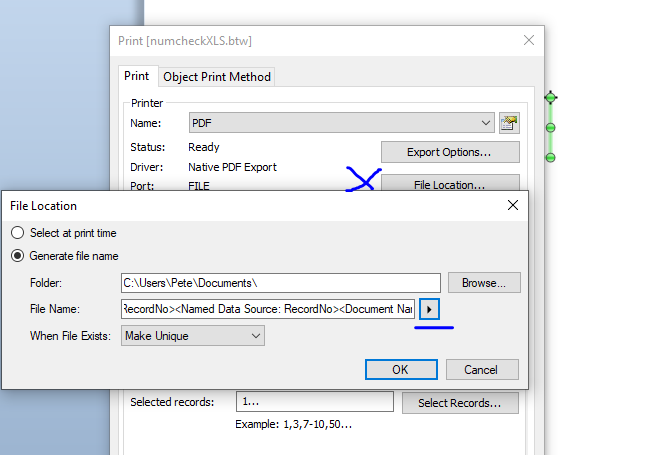
Have you tried adjusting these settings adding the unique record ID on to the label ( it can be off the side so it does not print) and make it a named data source?
0 -
Hi Peter,
Thanks for reaching out in This Topic.
We also still did not figured out, how to get this to work.
If possible, could you make a tutorial with printscreens how we can get this to work?
Hope you are able to help us proceed.
0 -
Add the field onto the label and configure it to be populated from the appropriate field of the database and then Name the field and it is doesn't need to be shown on the label drag it off to the side of the printed area
On the File>Print screen adjust the File Location settings to same the file based on the Named field you set above
 0
0


Bitte melden Sie sich an, um einen Kommentar zu hinterlassen.
Kommentare
5 Kommentare