"reverse Print" Serialization

-
All you have to do is change the serialization type from 'increment' to 'decrement'. That will make it count down rather than up.
0 -
That's not exactly what I wanted.
While using that setting will actually print off the printer in the way that I want, it does not update the labels correctly. I don't want to have to update my start number at the beginning of my printing every time.
0 -
Hi
I am trying to do the same thing. I have tried the decrement option however it only decrements from a standard starting number or the previous serial number. Is there a way that it can count down the number of labels based on the total label count required?
For example, if I want 20 labels, I will enter 20 at the print prompt and then it will count down from 20 to 1. If I only want five labels, it will count down from 5 to 1.
Thanks in advance
1 -
Anyone succeded with this?
0 -
I guess this is the kind of thing you mean for the Count Down number,
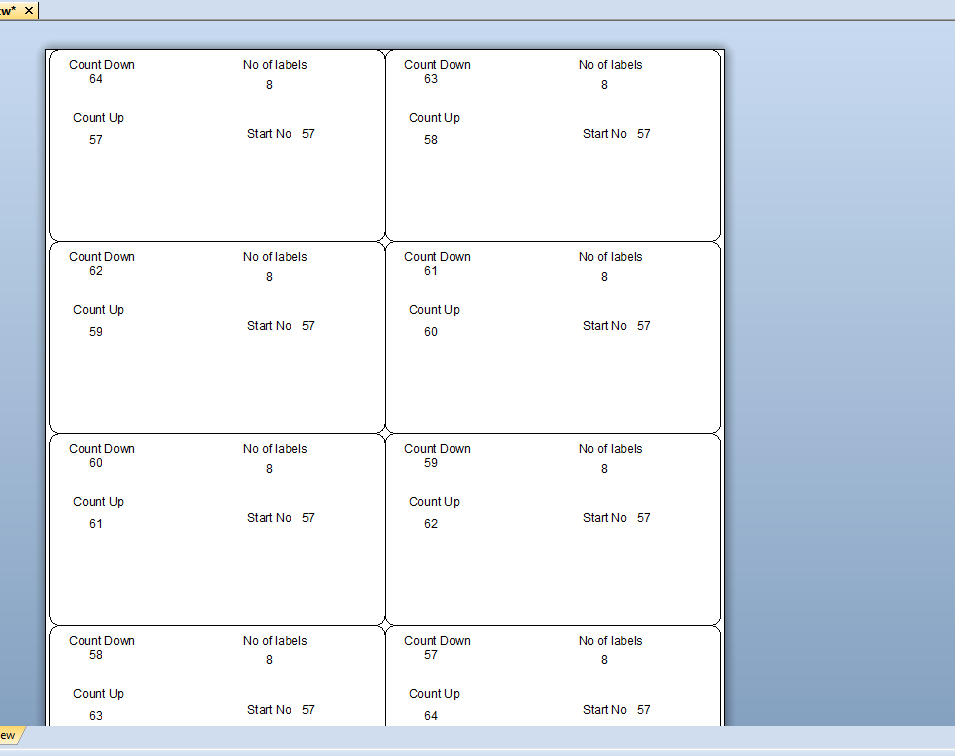
To implement this you will need to including a VB script routine, add a non printing field and include some named data sources.
- Add a field off the side of the template or either on the template but set to pre-printed so it does not appear when printing
- Configure this field to increment setting any reset value etc. via the Transforms>Serialisation field
- On the Data Source screen use the Change Data Source Name button to give the field a name (as you can see I called GoUp) and then set a starting value in the embedded data field (ie the 57 in the screenshot below)

- For the number of labels field, again which can be on or off the label depending if it needs to be shown or not add on the field and give this object a name via the same route as above. I called mine NoOfLabels.
- On the File>Print screen click on the button to the right of the Serial Number box and choose the Get quantity form Data Source option
- Next click on the words Data Source in the column on the left and when the right part of the screen changes choose the Change Data Source Name button but this time select the field name that you set above for the number of labels.
- On your Data Entry Form add either a Text or Number entry box and when you go in the Properties of this box, choose this same name from the list of Named Data Sources on the right
-

- For the reverse count a new text field on to your label and set the field to Decrement from the Transforms>Serialisation option.
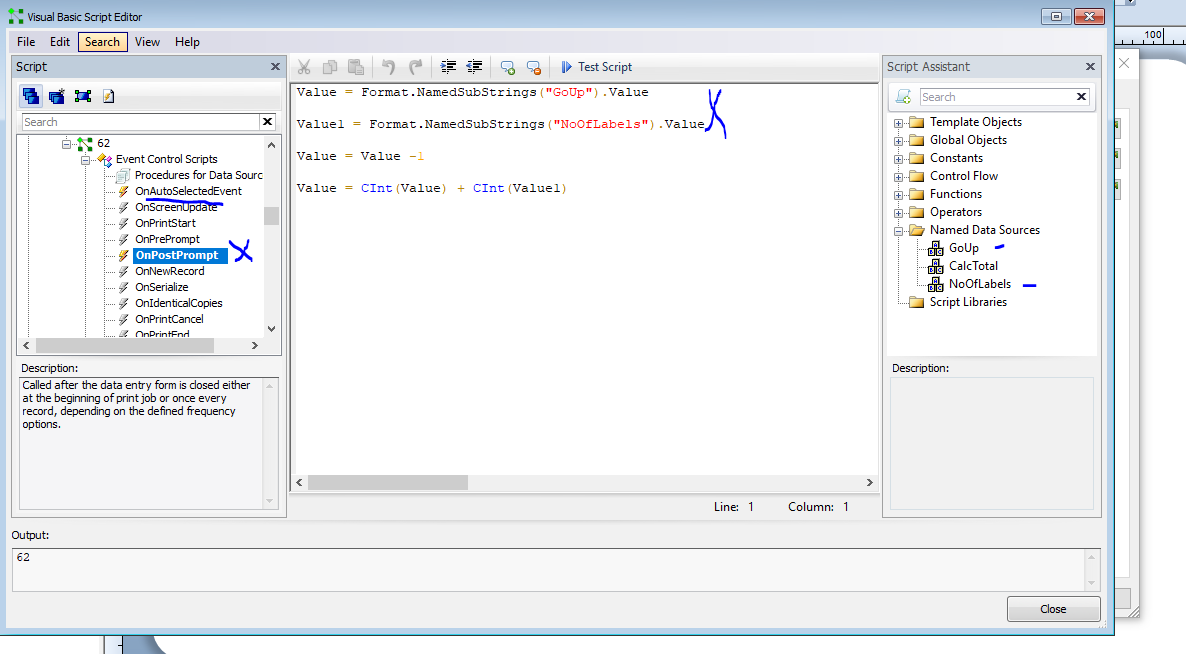
- On the Data Source screen change the Type to Visual Basic Script and select the Event Controlled Script option and then press the Edit... button.
- The column on the left will open with the OnAutoSelectedEveny option, which is correct. In the central box it will probably say something like Value = "Sample Text", amend this to Value = "1" or any other number you want
- Now in the column on the left scroll down a small way and select the OnPostPrompt option.
- The screen will now change and in the central box you need to type in something like that shown on the image below. Please note for the top two lines type in the Value = and then double click on the name of the appropriate Named Data Source from the column on the right and then repeat this for the Value1 =
- Ignore the CalcTotal name as that is not needed
- Click Close and then you are done
I hope this helps
2 -
Pete, I think this will do the trick.
Thanks :-)
0


Bitte melden Sie sich an, um einen Kommentar zu hinterlassen.
Kommentare
6 Kommentare