Update database record after Print

I am looking for a solution to update the field (Serial Number) in an item record of a SQL 2008 database table. I need the solution to always increment the existing number by the number of labels printed. We will have multiple part numbers (Internal Article Numbers) in the table and only one record per part number. I have 9 digits for the Serial Number 000000001. If I print 25 labels, I need the [Serial Number] Field to add 000000001 plus the number of labels printed to update the database record to 000000026. Without any user intervention. Any help would be greatly appreciated.
Database Layout Below
[Internal Article Number]
,[Product Description]
,[Layers]
,[Case/Layers]
,[Units]
,[SSCC]
,[GTIN]
,[Quantity]
,[Serial Number]
,[Weight]
FROM [dbo].[CustomerXXX_Label_SQL]
-
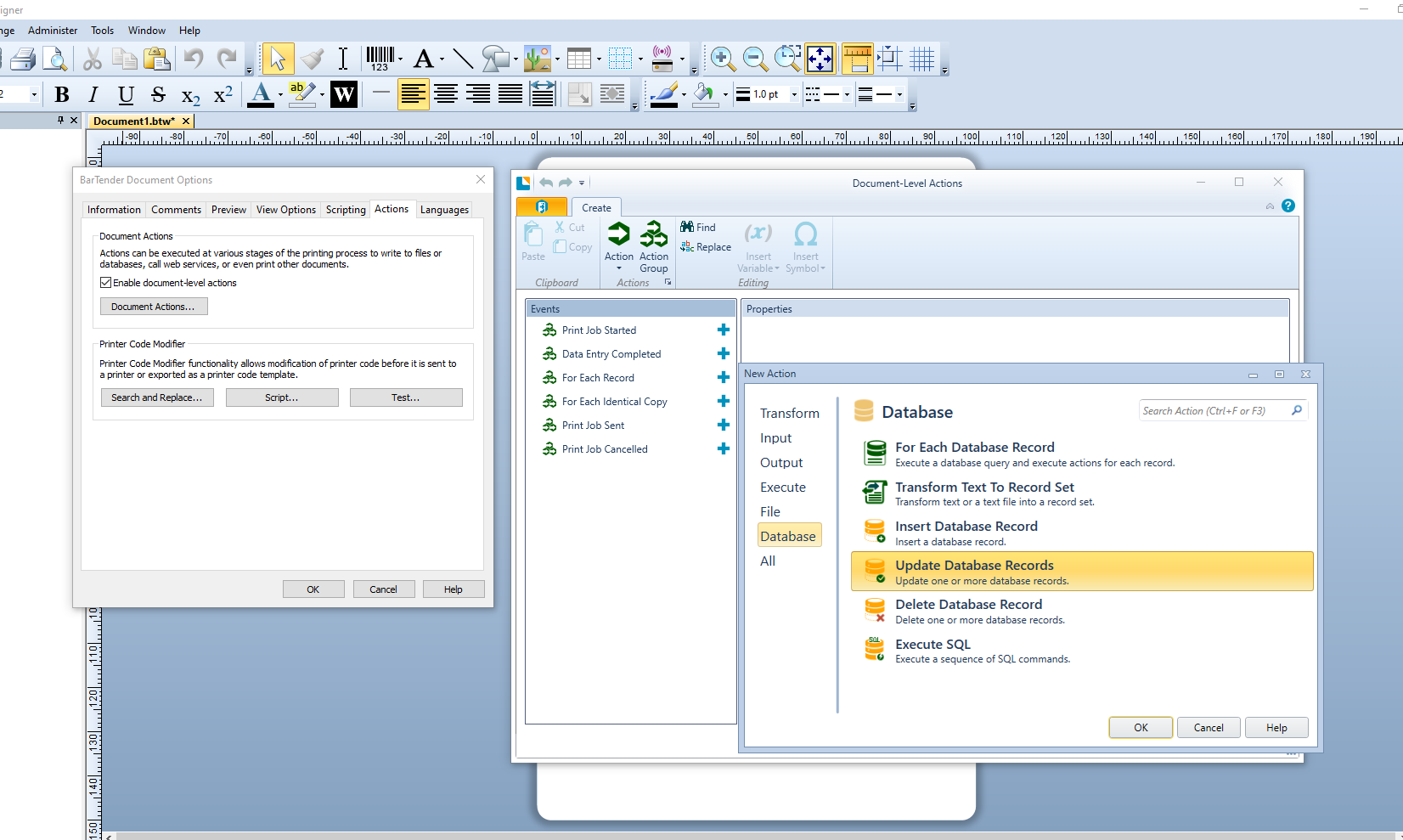
You will need to use an Action to achieve this either one from a Data Entry Form or a Document Level Action
 0
0 -
I am trying to use this feature. However, what is the syntax needed in the Where clause. For example my database primary Key column is LabelID int. In the where clause I have tried using a variety of syntax to tell BarTender to update THIS row for each label printed. WHERE LabelID = <Field(LabelID)> or WHERE LabelID = %LabelID%
Both return errors. What is BarTender expecting as the unique row indentifier?
0 -
The test label setup below uses an Access database where I have done something similar as a Form Action but this changes the value of the Status field to Printed once the record is printed.
The label includes a Named field added to it label (actually off to the side so it does not print) that “shows” the database key/unique ID. I have Named this field therecordnumber. This then allowed me to reference/link to the Named field from the Insert Variables option
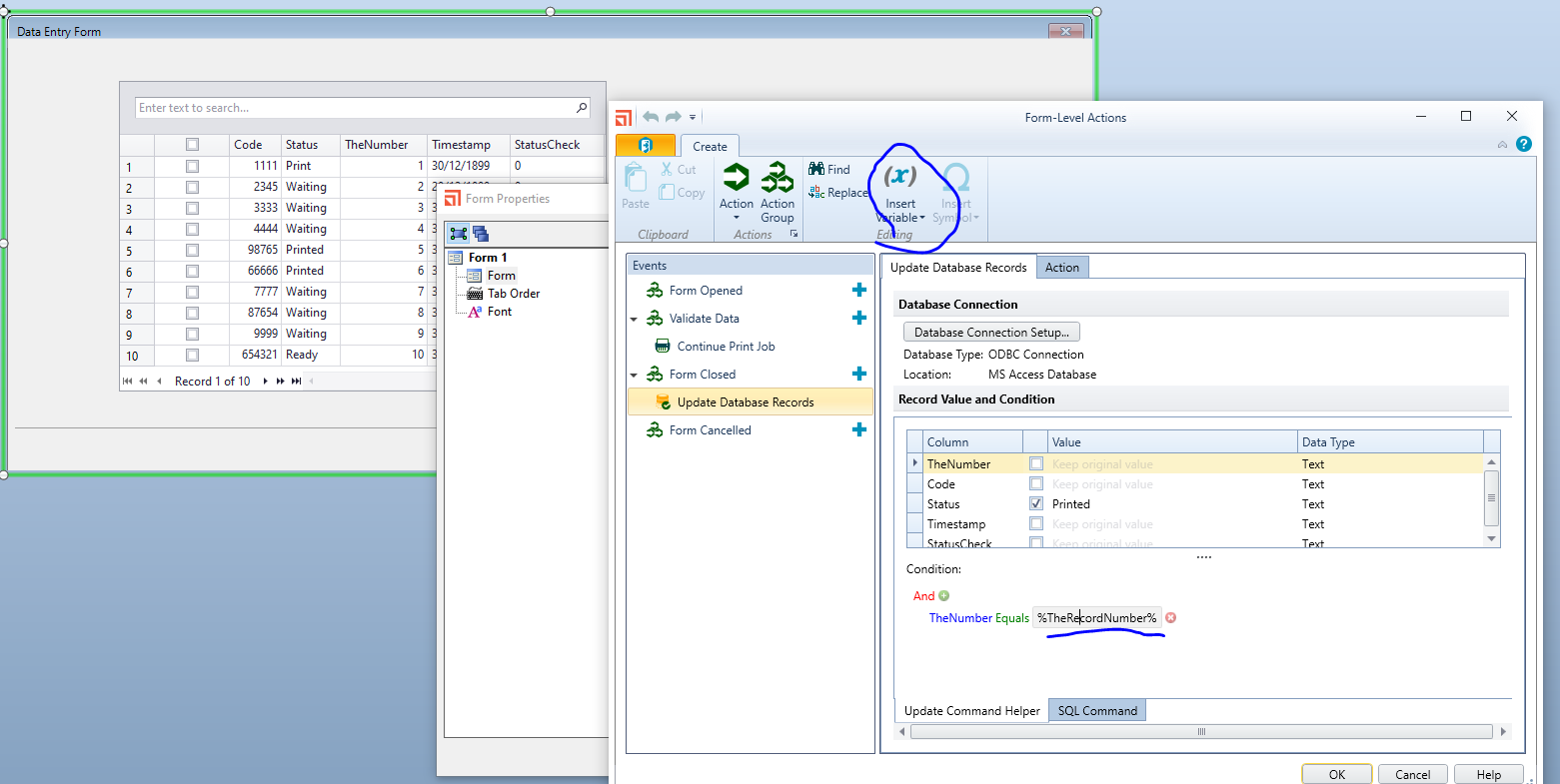
As you can see the record selection for printing above comes from a selection table but could come from a database filter in the labels Database Connection wizard setup screens instead and still give the same results
0


Bitte melden Sie sich an, um einen Kommentar zu hinterlassen.
Kommentare
3 Kommentare