Database Queries

Hi,
I would like to fill in text fields with database queries via an excel sheet. I connected the excel sheet and implemented a filter with a query so I can use column_A for textfield_A and the matching column_B for textfield_B.
But now I want to do this multiple times in a document. But I can not create multiple seperate filters.
Example:
Excel Sheet:
A | B
1 | Tom
2 | Peter
3 | Theo
4 | Louis
BarTender Document:
Textfield A with an input "2" -> Textfield A2 shall contain "Peter"
Textfield B with an input "4" -> Textfield B2 shall contain "Louis"
How can I get this to work?
Thanks!!
-
Hi Martin!
Thank you for posting your query in our Community Forums.
BarTender's Records per Item feature within the Database connection setup wizard should be able to help you with this:Focus on the section about the "records per item":
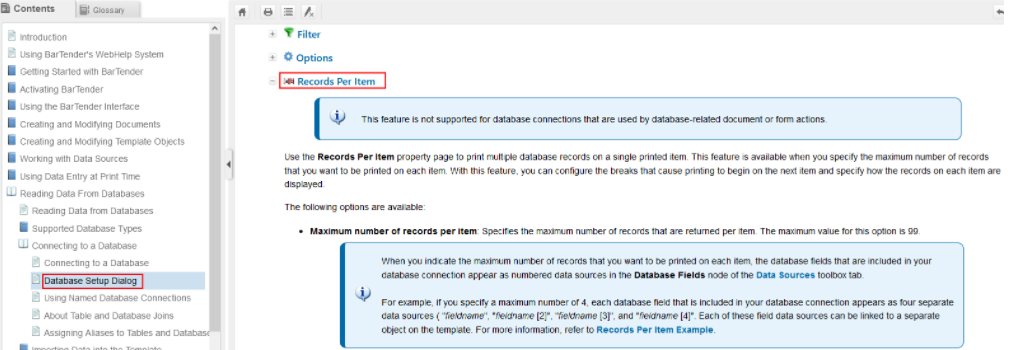
This example illustrates how you can populate multiple records of a single database field on a printed item.
- Create a new BarTender document and set up a new database connection.
- Go into the Database Connection Setup→Records Per Item section.
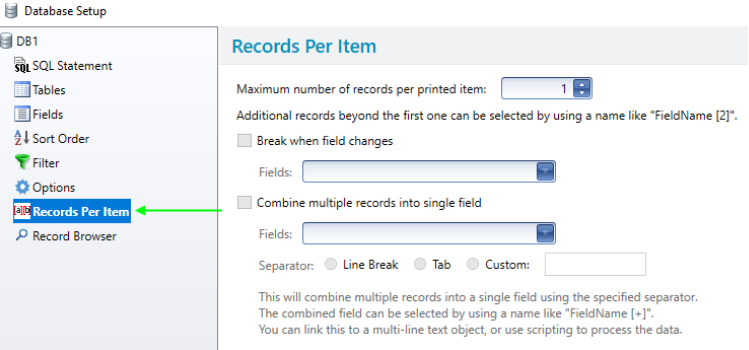
- Set the maximum number of records you want per printed item. For this example, it is set to 3.
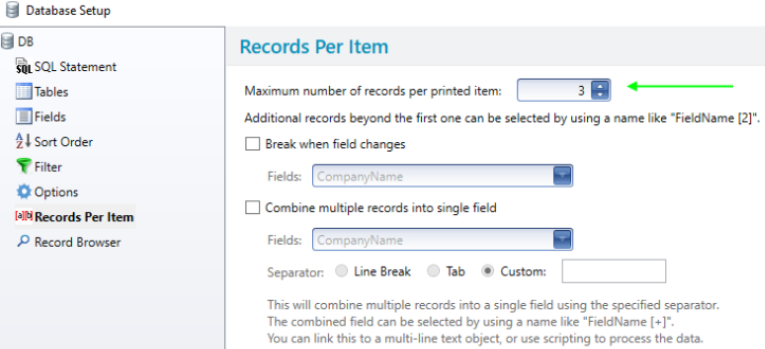
- Enable the checkbox option combine multiple records into a single field. Select the field "drop-down > enable the checkbox to (Select All)" and then click "Ok". Set the separator to Line Break.
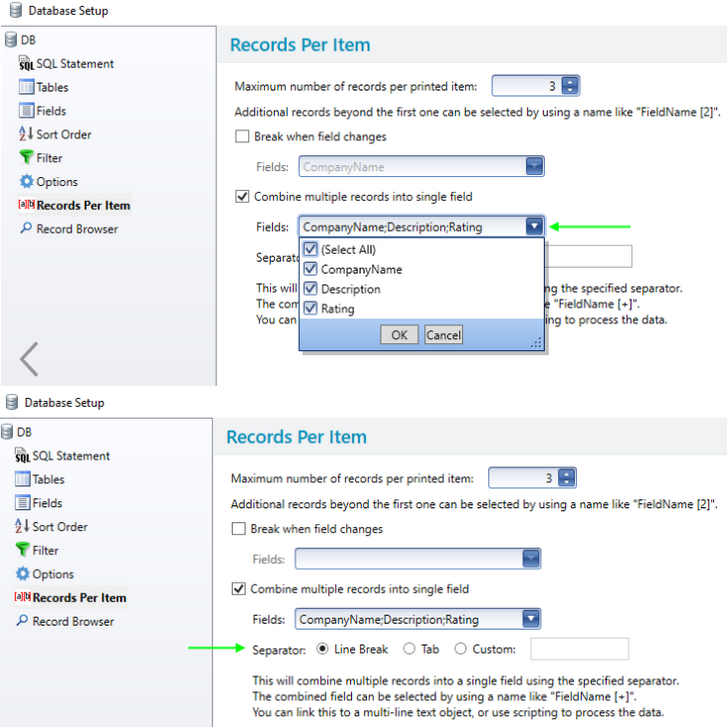
- Click ok to the database connection setup.
- Now on the template design, create a normal wrapped text object and place it on the template→go into the text properties.
- Select the default data source→change the type to a database field using the data source wizard. When prompted for the field to use, notice the names of the available fields in the drop-down list. Some database field names have a "+" symbol or number value next to them. The "+" symbol indicates that it will display all the records for that particular database field. The number value indicates it will display a particular number record.
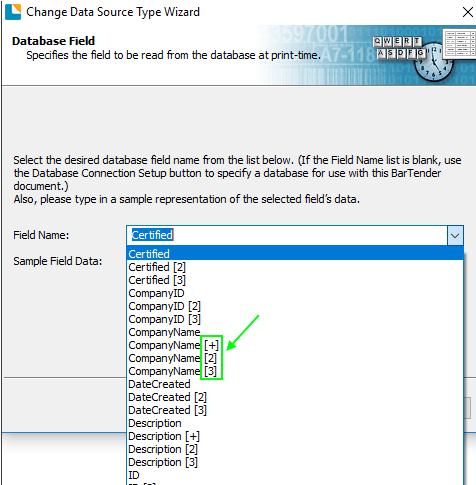
- For this example choose CompanyName + for the database field to use. Click finish to the data source wizard→close the text properties window.
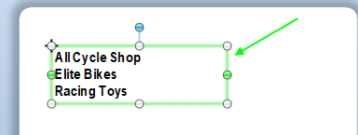
- You can see it displays the 3 records for the CompanyName database field for a single printed item.
I hope this is what you were looking for; let us know how it goes!
0 - Create a new BarTender document and set up a new database connection.

Bitte melden Sie sich an, um einen Kommentar zu hinterlassen.
Kommentare
1 Kommentar